
中英文對照版|Bilingual Chinese-English Version
Source page: NUTN Moodle
本頁將原 Moodle 頁面內容整理為中英文對照格式,並以 HTML 重建教學圖片畫面,讓圖片中的中文操作文字也能呈現中英對照。
This page reorganizes the original Moodle page into a bilingual format and recreates the instructional screenshots in HTML so that the text shown in the images is also bilingual.
This page reorganizes the original Moodle page into a bilingual format and recreates the instructional screenshots in HTML so that the text shown in the images is also bilingual.
1
下載網址|Download Link
English
Please go to the official Moodle mobile app download page and choose the version for your phone.
Download link:
https://download.moodle.org/mobile/
2
選擇手機系統|Choose Your Mobile System
Apple 手機請點選左邊紅框;非 Apple 手機請點選右邊綠框。
For Apple phones, tap the red box on the left. For non-Apple phones, tap the green box on the right.
Apple 手機|Apple Phones
iPhone / iPad 使用者請至 App Store 下載 Moodle App。
iPhone / iPad users should download the Moodle App from the App Store.
非 Apple 手機|Non-Apple Phones
Android 使用者請至 Google Play 下載 Moodle App。
Android users should download the Moodle App from Google Play.
3
設定步驟|Setup Steps
中文
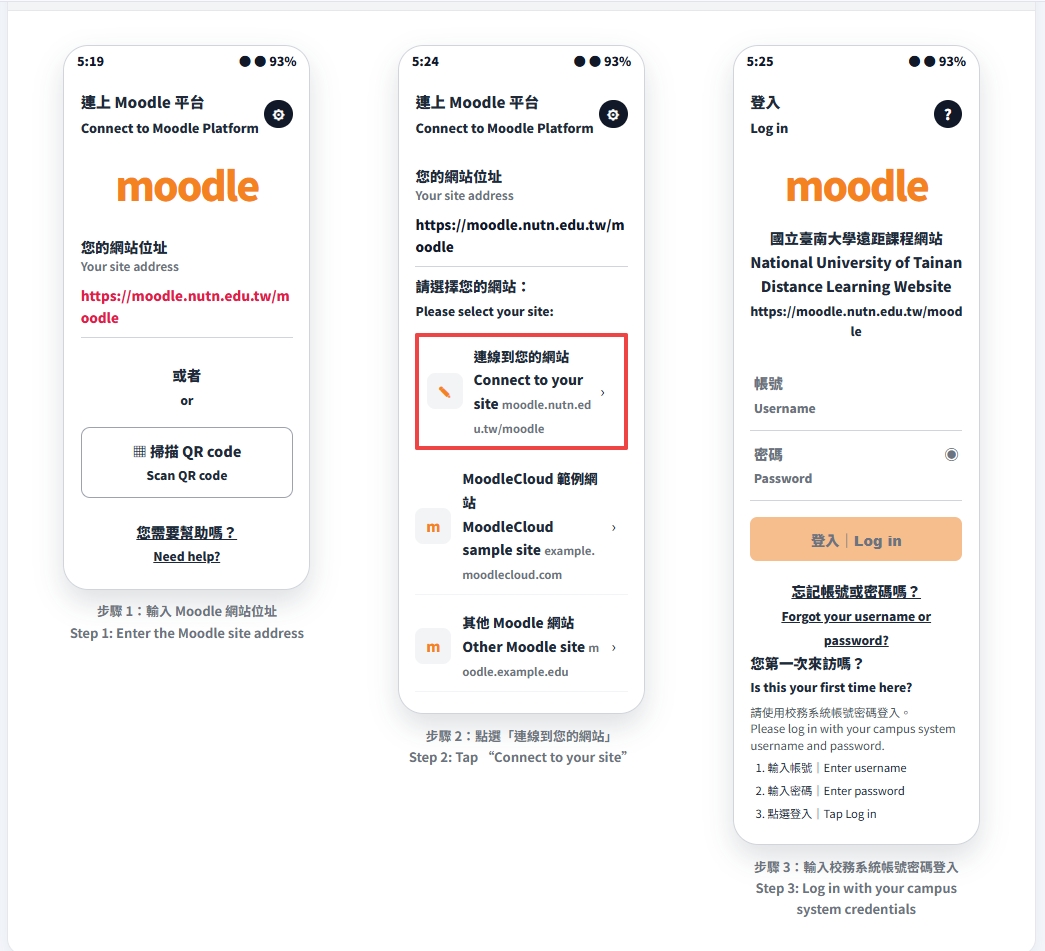
- 「您的網站位址」請填入:
https://moodle.nutn.edu.tw/moodle - 點選「連線到您的網站」。
- 登入帳號與密碼,請使用校務系統帳號密碼。
English
- In “Your site address”, enter:
https://moodle.nutn.edu.tw/moodle - Tap “Connect to your site”.
- Log in with your Student Information System / campus system username and password.
4
圖片文字中英對照版|Bilingual Text Version of Screenshot Instructions
Last modified: Monday, 25 May 2026, 10:56 AM